Astro + Tina Setup Guide
TinaCMS runs side-by-side with Astro, with first-class visual editing that requires no React in your page tree. The integration ships as @tinacms/astro (a vanilla-Astro rich-text renderer) and @tinacms/bridge (a ~2 kB gzipped postMessage client that loads only inside the editor iframe).
This guide walks through local setup, content modelling, running TinaCMS, and wiring visual editing.
Getting Started
1. Initialize TinaCMS in Your Astro Site
From within your site's root directory, run:
npx @tinacms/cli@latest init
This command will prompt you with a few setup questions. When asked for the public assets directory, enter:
public
Alternatively, scaffold from the React-free starter template:
npx create-tina-app@latest --template tina-astro-starter
This sets up a blog-ready Astro Starter Template with TinaCMS and visual editing preconfigured, no React in the source tree.
Modeling Your Content
Define your content models in tina/config.ts. See the content modelling docs for the full schema reference.
Running TinaCMS
Start the dev server alongside Astro:
npx tinacms dev -c "astro dev"
Note:--port 8080can be added afterastro devto specify a custom port.
Once running, navigate to:
http://localhost:<port>/admin/index.htmlor/admin (If using the Tina Astro Starter, which redirects to /admin/index.html)
Tip: If you encounter errors, check the Common Errors page.
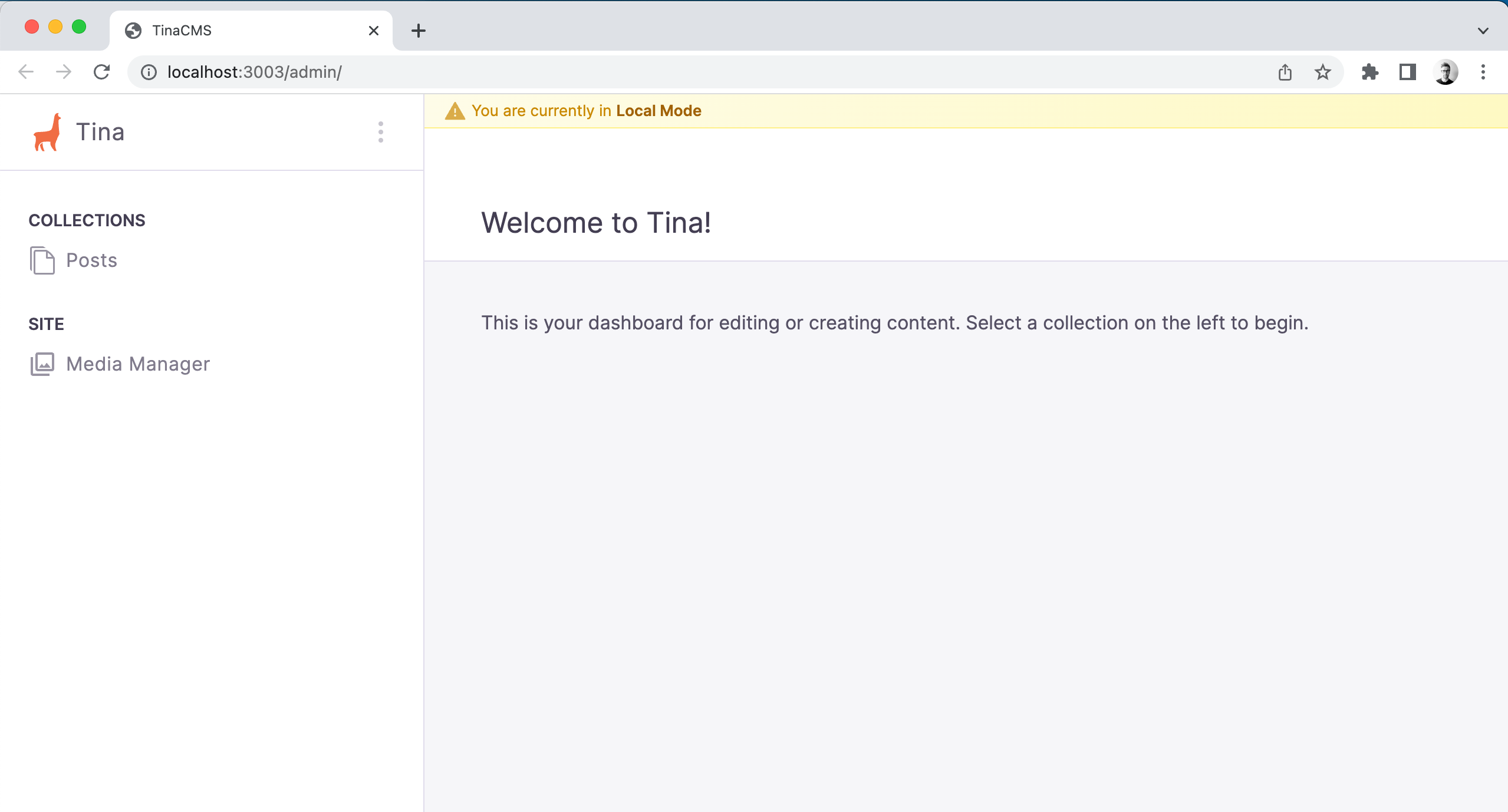
You should now see the Tina admin interface, be able to select a post, save changes, and observe updates persisting to your local markdown files.
Enabling Visual Editing
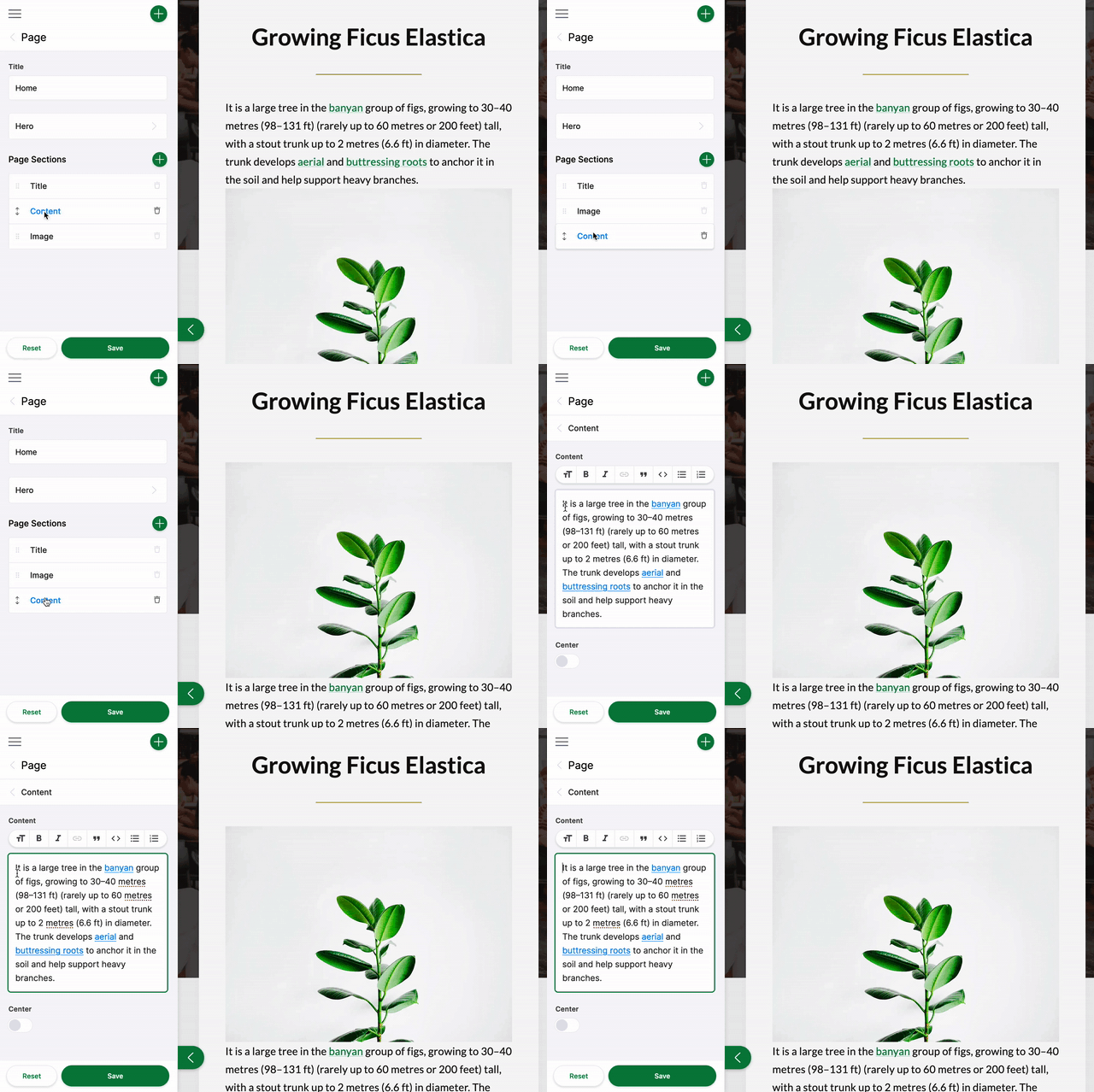
Visual editing (click-to-focus, live preview as the editor types, side-by-side admin + page) works on Astro without React via the @tinacms/astro package. The starter has it preconfigured. For an existing site:
npm install @tinacms/astro @astrojs/node
Then in astro.config.mjs:
import node from '@astrojs/node';export default defineConfig({output: 'server',adapter: node({ mode: 'standalone' }),// ...rest of config});
SSR is required. The bridge POSTs to a per-page refresh endpoint when content changes; that endpoint needs a server runtime. Use@astrojs/node,@astrojs/vercel,@astrojs/netlify, or any other Astro adapter; visual editing works against all of them.
The full wiring (bridge init(), form payload <script> tags, data-tina-island wrappers, tinaField() markers, the per-island endpoint) is documented in Visual Editing Setup → Astro.
Project Structure
The starter and the visual-editing setup organise around four moving pieces:
src/lib/:tina-preview.ts(thewithOverlay()data-loader seam),data.ts(per-collection fetchers),islands.ts(registry of editable regions),metadata.ts(_content_sourcestamping for click-to-edit),queries.ts(extracts the canonical query strings fromtina/__generated__/).src/pages/tina-island/[name].ts: the dynamic endpoint the bridge POSTs to on every keystroke. Renders the matching component to an HTML fragment viaexperimental_AstroContainer.src/components/islands/*.astro: pure Astro renderers (<TinaMarkdown>for rich-text,tinaField()for click-to-edit markers).src/components/BaseHead.astro: emits one<script type="application/tina+json">per form payload and loads the bridge.
See Visual Editing Setup → Astro for the full architecture.
Next Steps
- Visual Editing Setup → Astro: the bridge, per-island refetch, and custom MDX embeds
- Migrating from React-based Visual Editing: for existing Astro sites on the old
client:tinapath
For more details, visit the official TinaCMS documentation and Astro documentation. Join the TinaCMS Discord for community support.
See Also
- Next.js setup guide - Using Tina with Next.js
- Hugo setup guide - Using Tina with Hugo
- Self-hosting options - Host Tina on your own infrastructure